Showing posts with label windows 7. Show all posts

Wednesday, February 6, 2013

How to disable UAC (User Account Control) windows 7

User Account Control (UAC) is a security feature of windows 7. Each will access files or applications windows vista system will display a warning UAC confirmation of this security feature. This feature can be turn off (disable) so you are not disturbed by the frequent windows asking "Do you want to allow the followinf program to install software on this computer" Do you want or allow the other .... that appear in the dialog box user account control them. Disabling UAC does not interfere with the performance of windows 7.
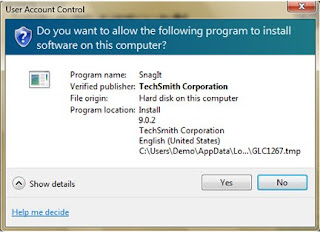

How to disable user account control in windows 7, can be done using the following procedure:
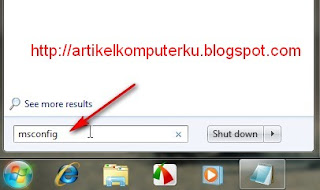
1. In the search box type in msconfig and then enter


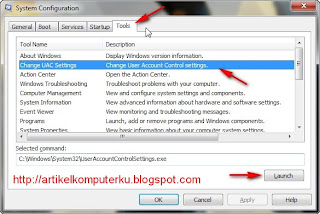
2. Select the Tools tab
Select Change UAC Settings
Click the Launch

3. Slide the bar to Never notify slice
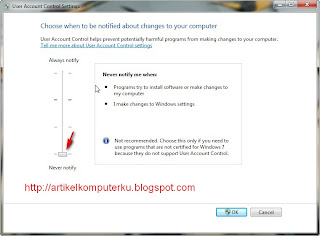
If successful then the User Account Control prompt box does not appear anymore when installing programs or running a particular application.

For Windows Vista users can refer to the guide here Disable UAC Windows Vista

Some other posts that discuss Windows system can be found here guide Windows 7

Tuesday, February 5, 2013

How to speed up windows 7 (improve the performance of windows 7)

Windows 7 is the latest product from microsoft windows. By default Windows 7 offers many features that are not needed by desktop computer users (individuals). If the features are not so important in disabling or off, it can further improve the performance of Windows 7. What we discuss here is not a hardware upgrade, but configuring the software windows.Karena if upgrading computer hardware costs, while on the other hand for those who can not afford the upgrade, it can improve the performance of the windows by slightly modifying the default configuration.

Here are some tips to speed up / improve the performance of windows 7


1. Disable / turn off unnecessary Windows services, such as:
Disable autoplay / autorun in Windows 7
How to Uninstall Tablet PC components in Windows 7
How to turn off (disable) the automatic updates in Windows 7
Speed ​​up menu display in start menu windows 7
Turn off (disable) telephony service in windows 7
Turn off (disable) the fax service in Windows 7
Turn off (disable) error reporting windows 7

2. Adding virtual memory windows

3. If the size of the hard drive, should the disk space into several pieces through the disk partition
4. Do a scandisk and defrag using disk defragmenter regularly. By doing scandisk and defrag regularly can help windows sector and cluster marking well and damaged the hard drive space, and windows can help sort and classify data stored on the hard drive as the system files, application files, and data files to better suit the needs of the system making it more accessible by windows.
5. Clean junk files windows, such as deleting temporary files, windows prefetch files, clean up the corrupted registry files (error), delete the thumbnail cache explorer,
6. Scanned for viruses and adware, malware and spyware on a regular basis and do not lupaupdate antivirus offline and online.
7. Install applications taste
etc.

Some other tips are discussed on how to use windows 7 can be found here tutorial windows 7